

A mandala wallpaper on Android with Dahlia
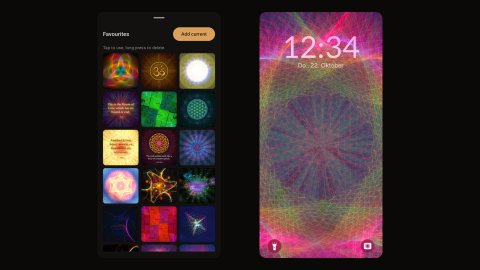
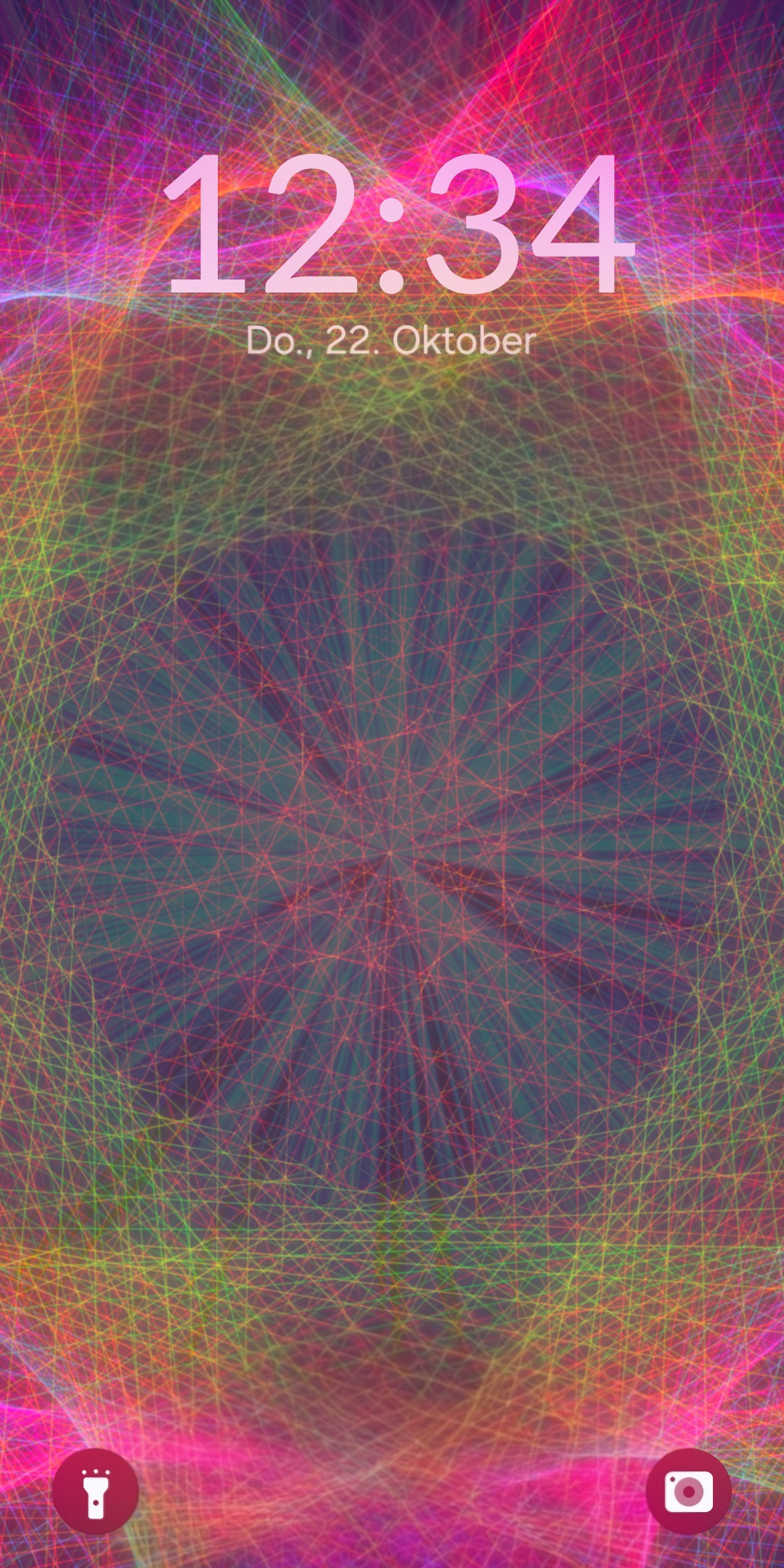
This is how I make a wallpaper with Dahlia – Mandala Maker, my Android app. Mandalas are symmetrical and have a centre, which keeps the picture orderly with icons on top of it. Everything in this guide is in the free version. Other mandala apps work in a similar way, so most of the steps carry over.
1. Install Dahlia and start from an example
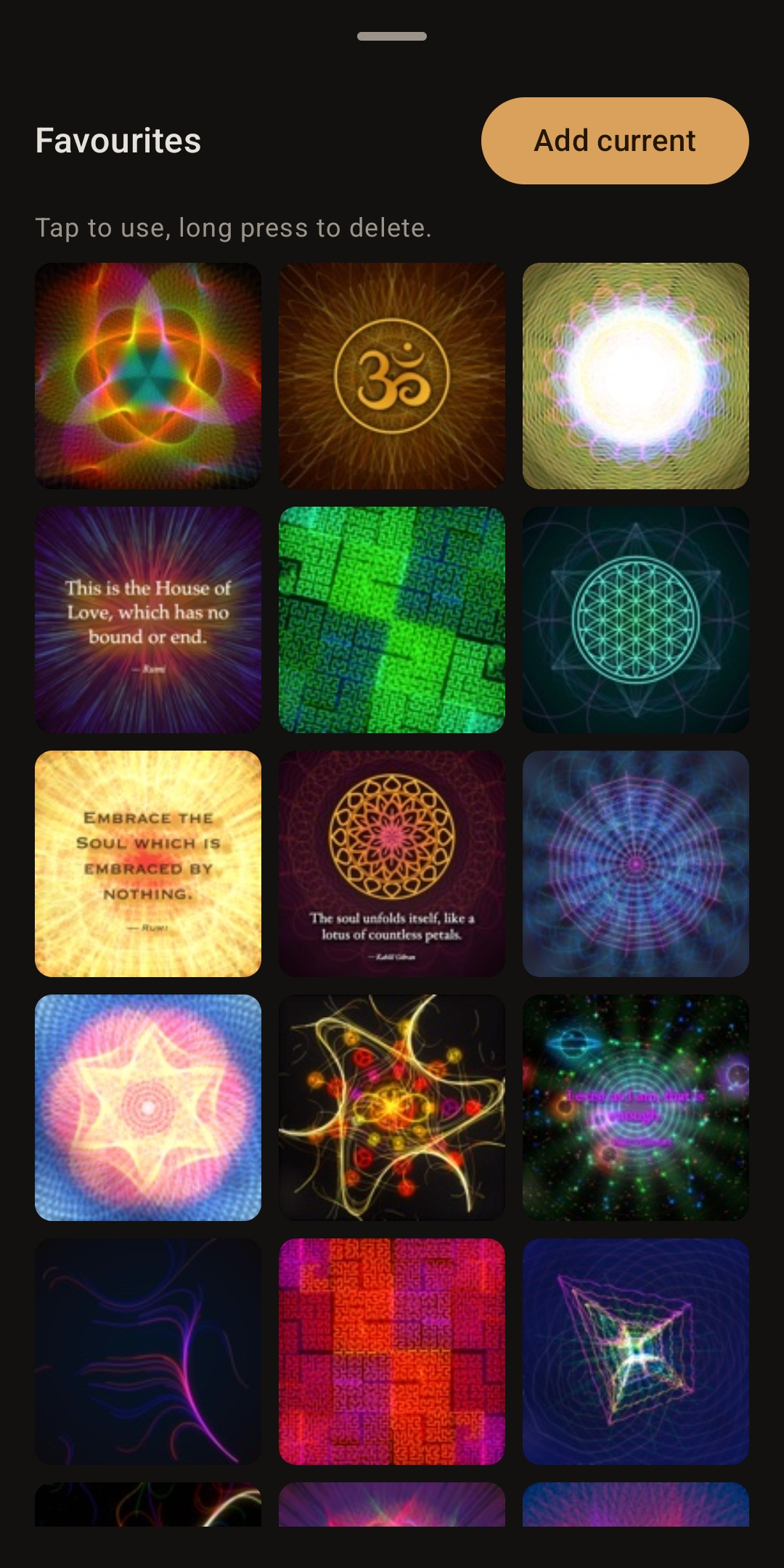
Install Dahlia from Google Play (Android 10 or newer). The app opens with 23 example favourites. Tap one that is close to what you have in mind, or tap the dice for a random combination of styles and colours. It is easier to adjust an existing mandala than to start from nothing.
2. Build the mandala layer by layer
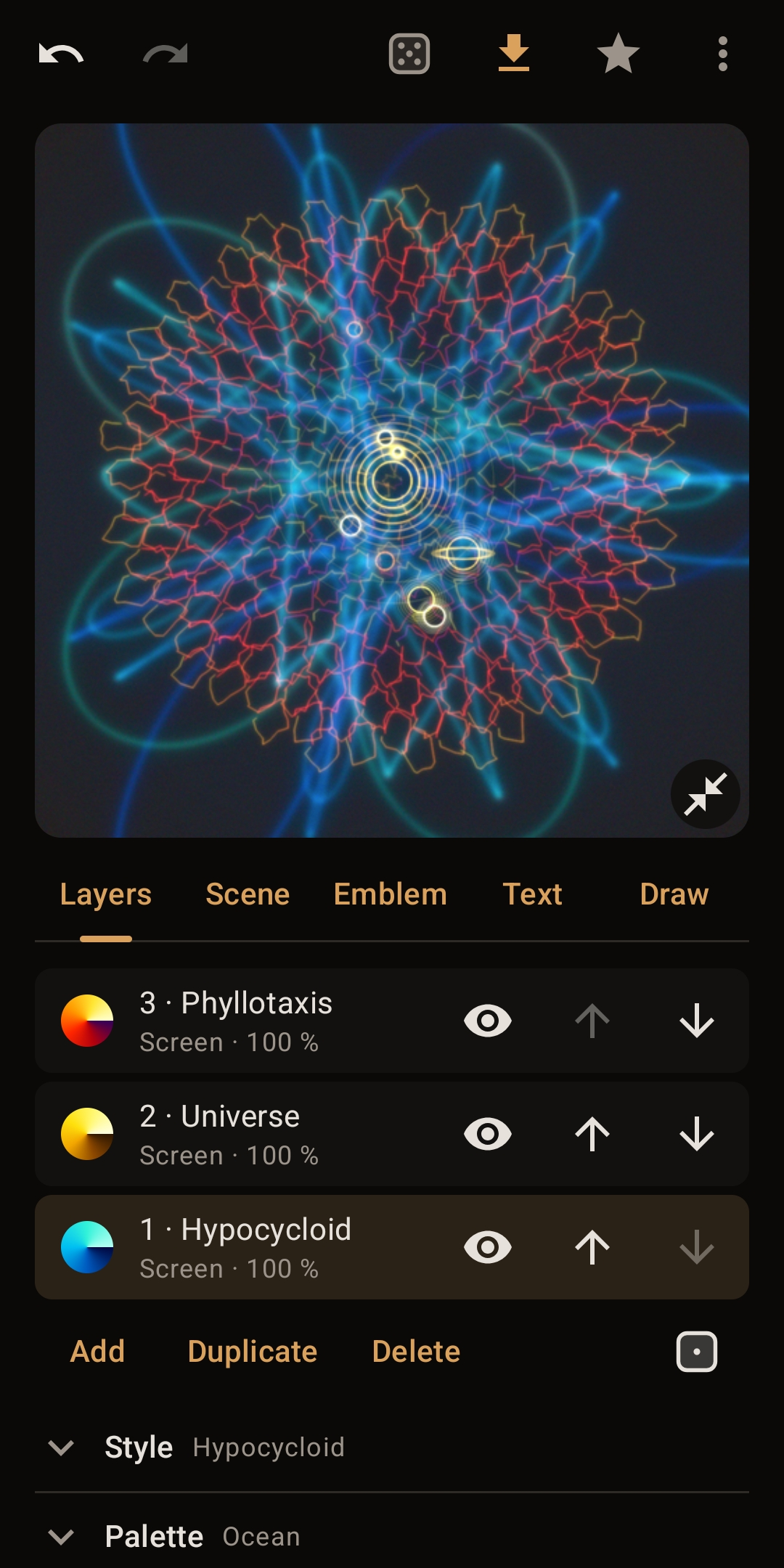
A mandala consists of up to three layers in the free version, five in Pro. Every layer has its own drawing style, symmetry, palette and glow. For a wallpaper, two or three layers are usually enough: one quiet background layer with wide curves, one detailed layer in the middle, and perhaps a thin outer ring. If a combination does not work, the history arrows take you back one step.
Two things help on a phone screen:
- Keep the centre open or simple if your clock or a widget sits there.
- Pick a palette with one dominant colour. Several strong colours compete with the app icons.
3. Choose a background
Open the background settings and choose a gradient, a sunburst, grain or one of your own pictures. A dark gradient works best behind icons because the white labels stay readable. Grain adds a little texture without adding detail. If you use a photo, pick one with little contrast, otherwise the mandala fights with it.
4. Add effects carefully
Bloom and a vignette make the mandala glow and darken the edges, which suits a lock screen. Stars fill empty areas. Use one or two effects, not all of them. You look at a wallpaper hundreds of times a day, and busy ones tire quickly.
5. Save in the shape of your screen
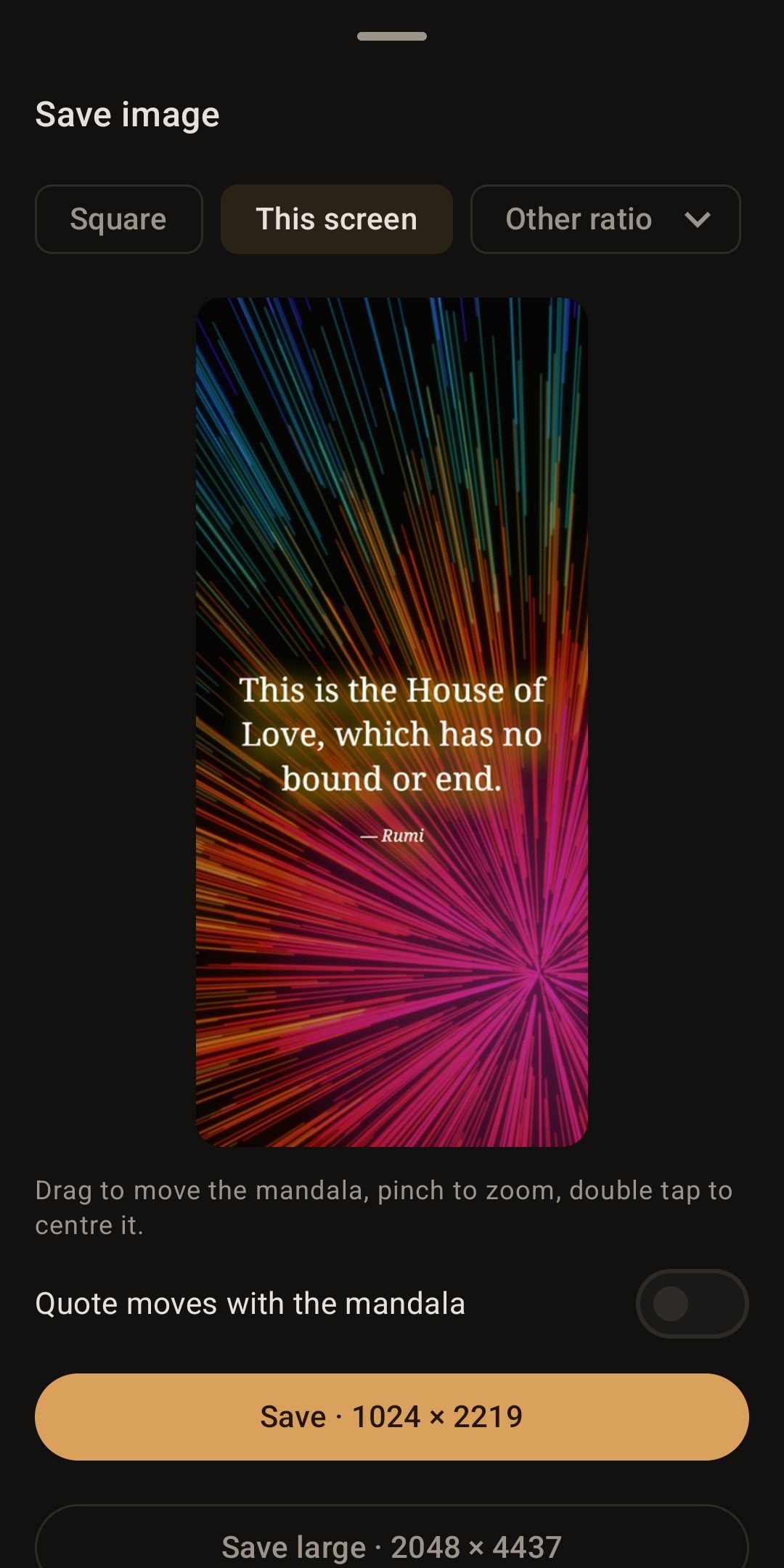
Tap save and choose the shape of your screen instead of the square. You can either show the whole mandala, which leaves room above and below, or let it fill the picture, which crops the outer ring. Both work: the filled version leaves less detail behind the icons, the full version shows the outer ring, which suits the lock screen. The free version saves at screen size. Pro saves at 2048 px and lets you place the mandala by hand.
6. Set it as your wallpaper
Dahlia can set the saved image as your wallpaper directly, or you open the picture in your gallery and use “Set as wallpaper” there. Android asks whether you want it on the home screen, the lock screen or both. If you prefer a quieter home screen, use the filled version there and the full mandala on the lock screen.
If you want it to change
With Pro, a one-time purchase, the wallpaper can change on its own: a new one from your favourites every morning, a live wallpaper that slowly turns, or home and lock screen as a pair.
Dahlia is open source under the GPL. The code is on GitHub, and the app page has the download link and the privacy policy.
Products in this post
Android 10+ · macOS 14+
Dahlia – Mandala Maker
Mandalas from curves, light and symbols.
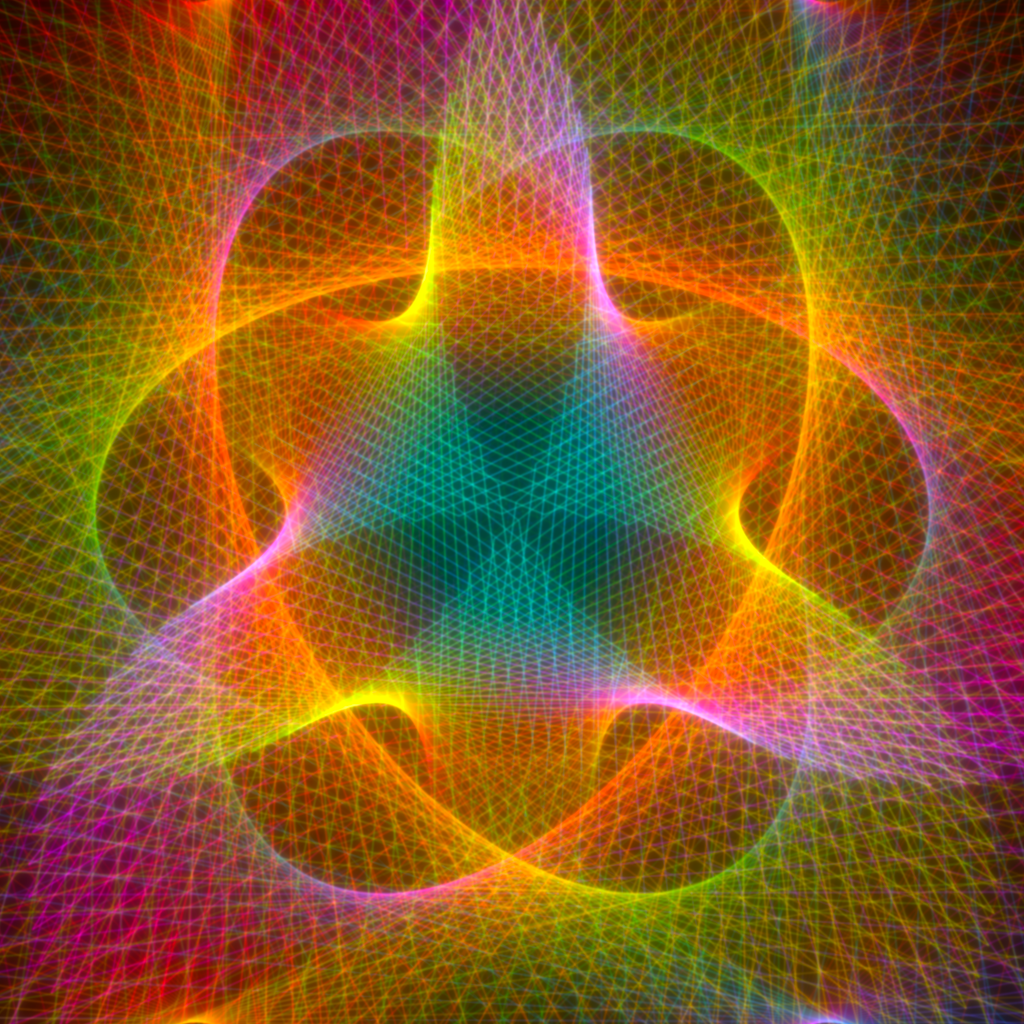
Create glowing mandalas from 36 drawing styles, layered backgrounds and effects, and a symbol in the centre: Om, the Tree of Life, the Flower of Life, a lotus and more. Save them, share them or set them as your wallpaper.