

Meta description and Open Graph image with Meta Kit
How every page of a Kirby site gets a meta description and an Open Graph image with Meta Kit: the fields the plugin reads, a site-wide default image and one per page, the fallbacks, and how to check the tags. Worked through on tearoom.one.
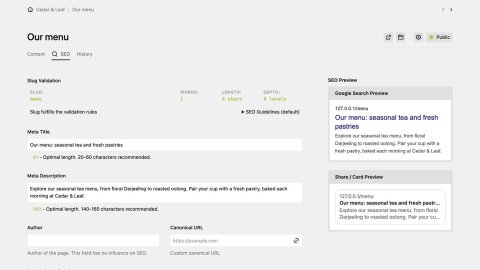
Meta Kit is my SEO plugin for Kirby CMS. In October 2026 I used it to give every app and plugin page on tearoom.one a meta description and an Open Graph image. This post is the procedure, with the field names and the fallbacks as the plugin applies them.
Setup
Meta Kit needs three things: the snippet in the head, the SEO tab in the page blueprints and the SEO tab in the site blueprint.
<?php snippet('meta-kit/seo') ?>The snippet writes the title, the meta description, canonical, robots, hreflang, the Open Graph and Twitter Card tags and the Schema.org JSON-LD. On tearoom.one it sits in site/snippets/header.php.
tabs:
  seo:
    extends: meta-kit/page
Kirby also accepts the short form seo: meta-kit/page. On tearoom.one the tab is in site/blueprints/pages/base.yml, which the app and plugin blueprints extend, so every product page has it. The site blueprint gets seo: meta-kit/site the same way.
Which fields the snippet reads
The description comes from the page field metaDescription. If it is empty, the snippet takes the site field metaDescription from the site’s SEO tab. If both are empty, no description tag is written.
The Open Graph description has its own field, ogDescription. If it is empty, the page’s metaDescription is used, then the site default. The Open Graph title is ogTitle, falling back to metaTitle and then to the page title. The site name is appended when “Append site name” is on in the site’s SEO tab, and the checkboxes under it decide whether that applies to the meta title, the OG title or both.
The image comes from the page field ogImage, a files field limited to one image from the page’s own files. If it is empty, the site field ogImage is used. The snippet resizes the chosen file to 1200x630 and writes og:image, og:image:width, og:image:height and, when the file has an alt text, og:image:alt. Without any image, no image tag is written.
The site-wide default image
tearoom.one already had a 1200x630 og-image.png as a site file. I selected it in the site’s SEO tab under “OG Image”; in content/site.en.txt the field is Ogimage with a file:// reference. From then on every page without its own image shares the site card.
A per-page image
For the app and plugin pages I wanted the product icon on the card. A small script, bin/og-card.sh, builds a 1200x630 PNG with ImageMagick: the icon with rounded corners on the left, title and subtitle in Figtree on the site’s background colour, the site name at the bottom. The PNG is saved as og-image.png into the page folder and selected in the SEO tab. In the content file of the Dahlia page this looks like:
Metadescription: Create glowing mandalas from 36 drawing styles, layered backgrounds, effects and a symbol in the centre. Save, share or set them as your Android wallpaper.

---
Ogimage:

- og-image.png
(In the real file this line is four dashes; three are shown here because the blog post itself is a Kirby content file.)
One side effect: the plugin pages list the page images as screenshots, so the templates now skip og-image.png. If a template loops over $page->images(), check this.
Twitter card type
The snippet needs no setting for the card type. With an image it writes twitter:card as summary_large_image, without one as summary. Setting the site-wide image therefore switched the whole site from the small card to the large one. Pages whose template is listed in opengraph.articleTemplates (article and post by default) also get og:type article with published and modified times; the posts on this blog use the article template, so this applies to them without configuration.
Descriptions
For the descriptions I did not use the AI buttons; the summary texts of the pages already existed. Every app and plugin page and both overviews got a text of 120 to 155 characters in English and German, written into Metadescription in the two language files. Meta Kit’s default range for the meta description is 140 to 160 characters, with 126 to 176 still acceptable, so some of mine show an orange mark; the text is rendered in full either way. The ranges can be changed globally or per template under validation in the config.
Checking the result
Three places. The Meta Kit area in the Panel has a tile for meta descriptions and one for OG images; a click filters the table to the pages with something open. Inherited values are dimmed, so a page that uses the site image is easy to tell apart from one with its own. The SEO tab of a page shows a Google, a Facebook and a Twitter preview. And on the server:
curl -s https://www.tearoom.one/en/apps/dahlia | grep -E 'description|og:|twitter:'For the networks’ own view, their sharing debuggers fetch the page and show the card; they also drop the cached copy after a change.
robots.txt and sitemap
Meta Kit serves /sitemap.xml and /robots.txt itself, and the robots.txt references the sitemap. A static robots.txt in the web root shadows the dynamic one: tearoom.one still had one that pointed to a sitemap URL answering 404, so I removed it. Pages can be left out of the sitemap in the Panel or with sitemap.exclude in the config. The Meta Kit config of the site is short:
'tearoom1.meta-kit' => [
    'sitemap.exclude' => ['imprs.*'],
    'llms.enabled' => true,
],
The code and documentation are on GitHub.
Products in this post

Kirby plugin
Meta Kit
A SEO workflow plugin for Kirby CMS
A SEO workflow plugin for Kirby CMS with validation, previews, centralized metadata management, and optional AI generation. Meta Kit helps editors and developers keep SEO work consistent across the entire site.