

 Dahlia – Mandala Maker




Build a mandala from several layers
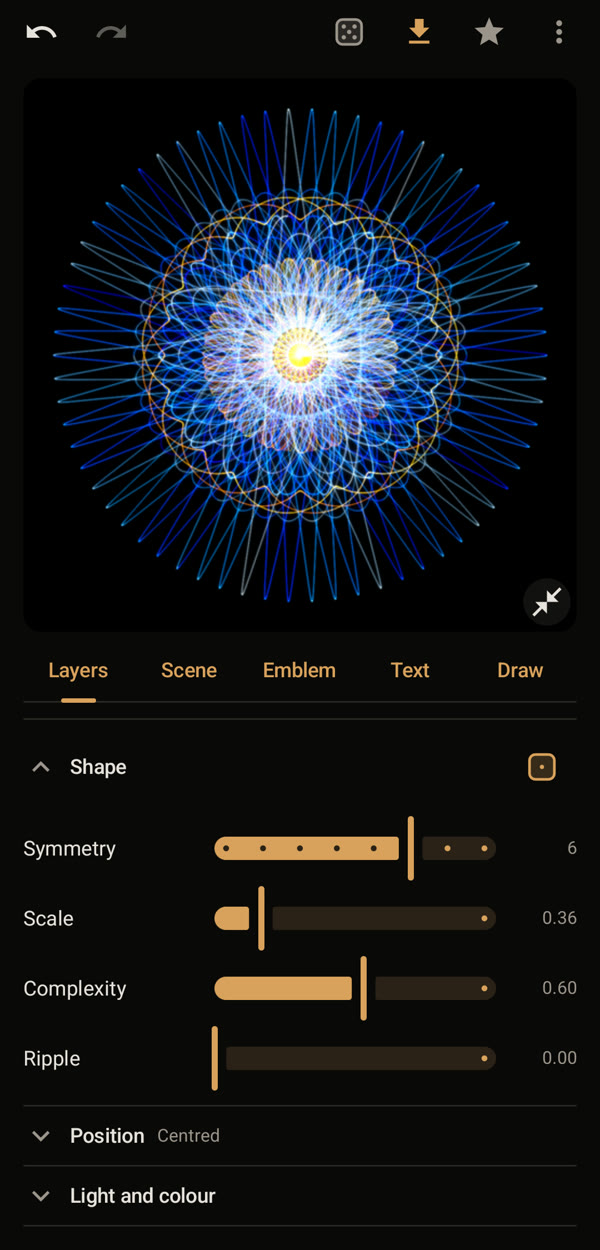
A mandala gets depth when several patterns lie on top of each other. Here a calm blue spirograph gets a gold star in its centre.
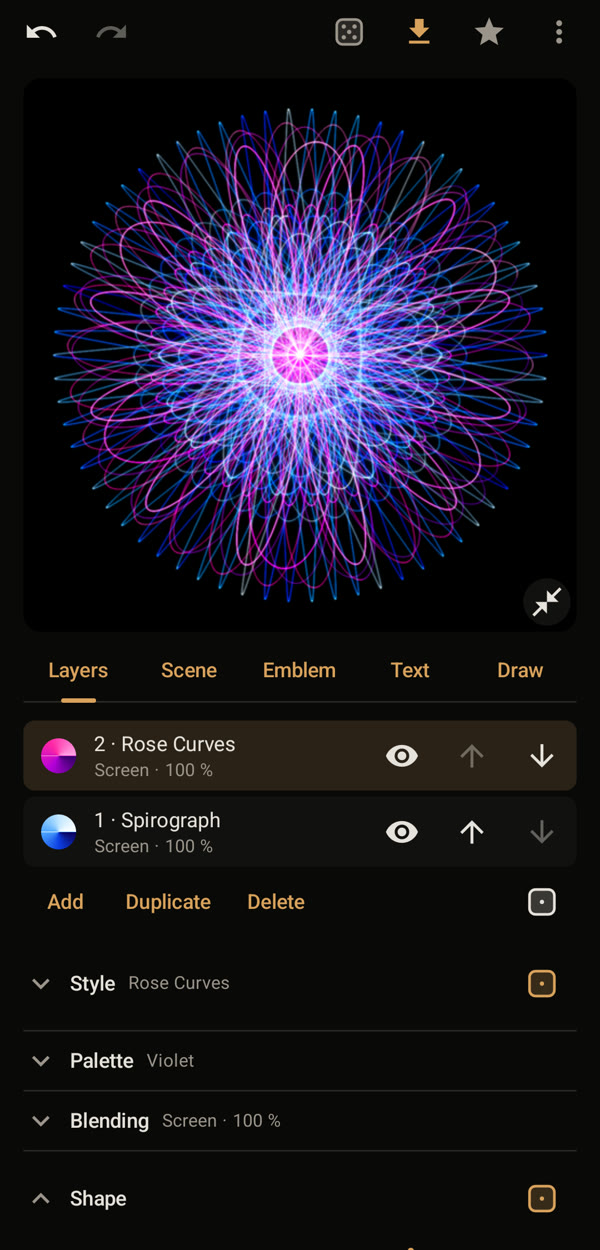
1. Add a layer
In the “Layers” tab, tap “Add”. The new layer appears at the top of the list and is selected; everything below now changes only this layer.
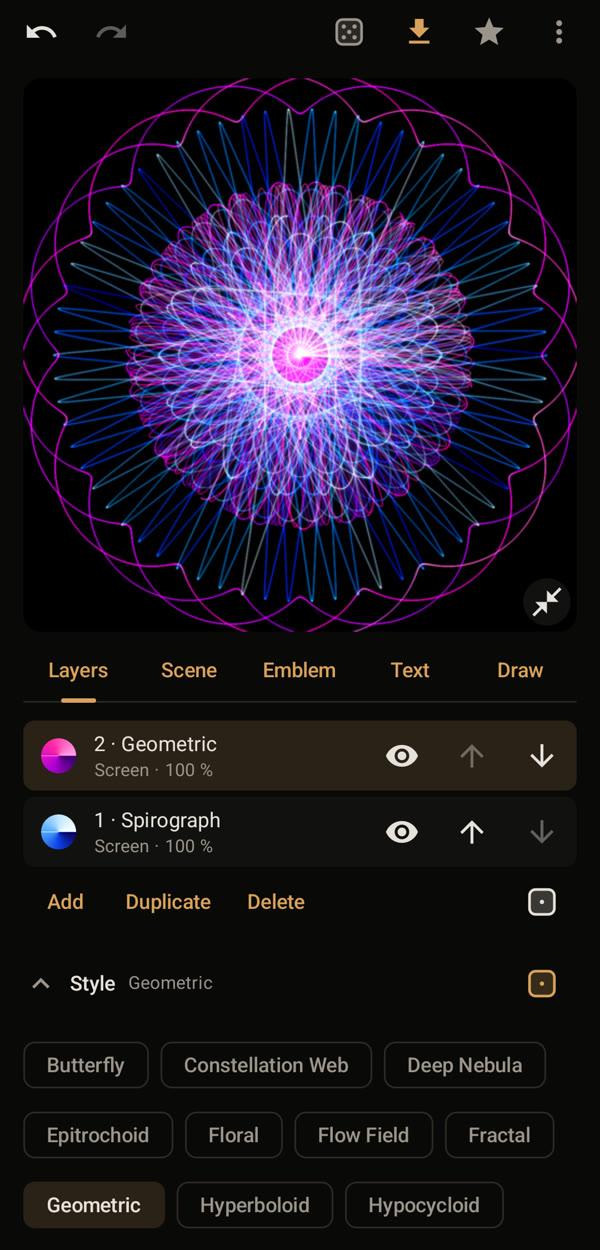
2. Choose a style
Open “Style” and tap a style, here “Geometric”. The die beside “Style” tries a new variant of the same style.
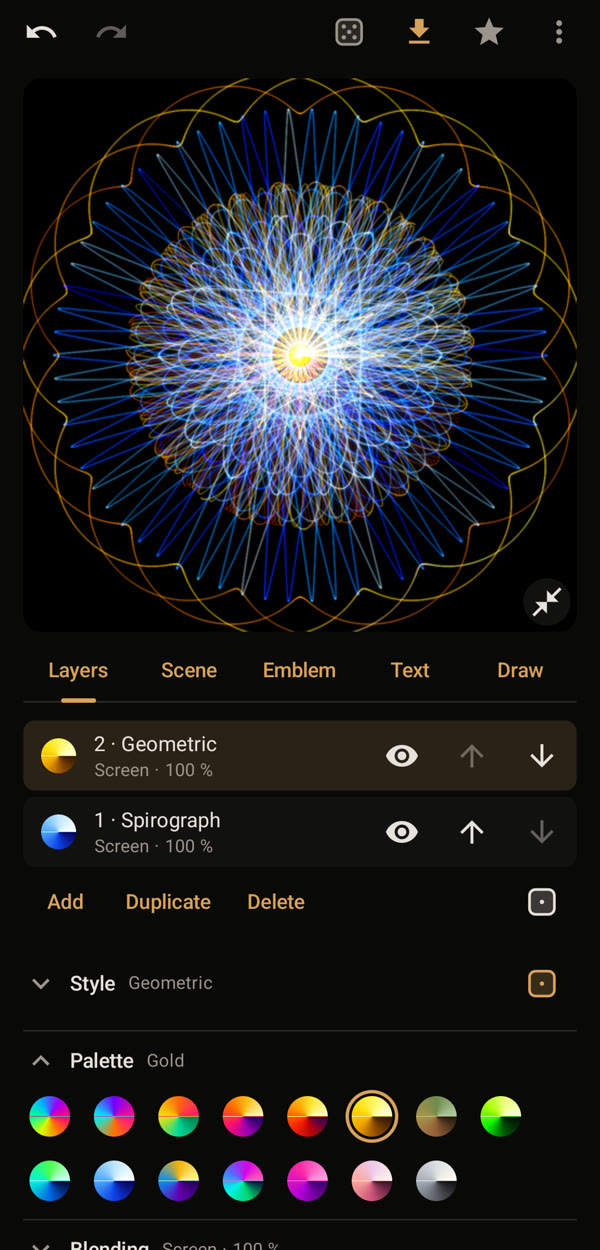
3. Choose colours
Open “Palette” and pick colours that stand out against the layer below, here “Gold” on blue.
4. Make it smaller
Scroll down to “Shape” and move “Scale” to the left. The layer shrinks towards the centre and the layer below shows around it. “Symmetry” sets how often the pattern repeats.
5. Keep it
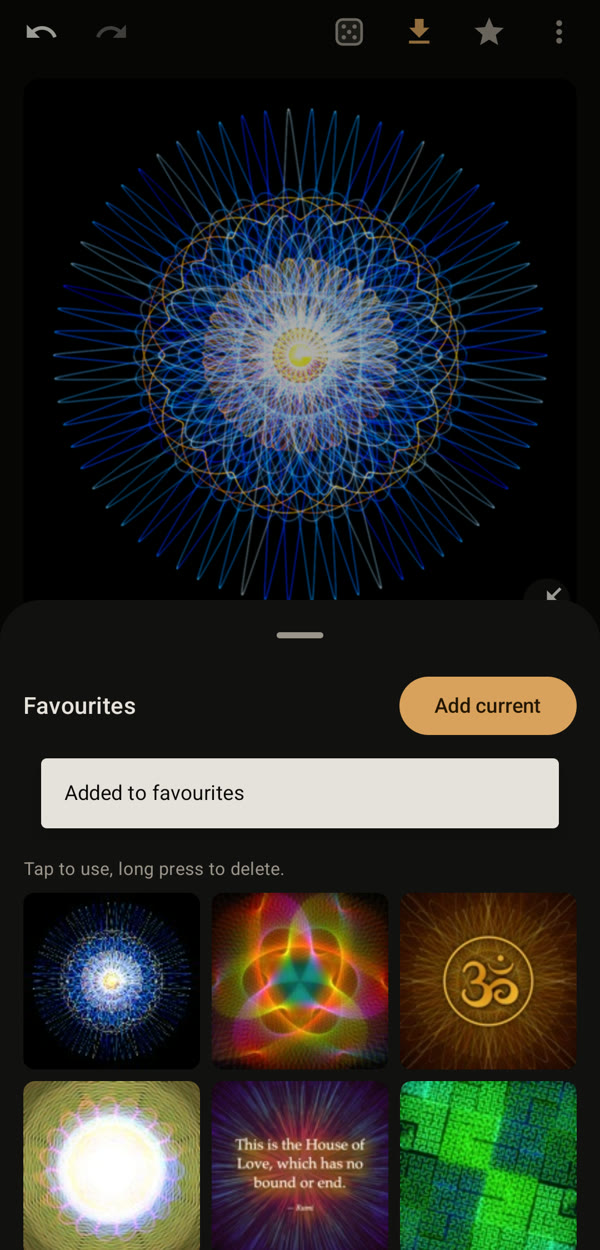
Tap the star in the top bar and “Add current”. The mandala is now among your favourites.
Good to know
- The eye beside a layer hides it, the arrows change the order.
- Without Pro you can use three layers; up to five with Pro.
- If a layer looks too bright, try another mode under “Blending” or lower its opacity.