
 Dahlia – Mandala Maker




Set a mandala as your wallpaper
1. Choose the screen
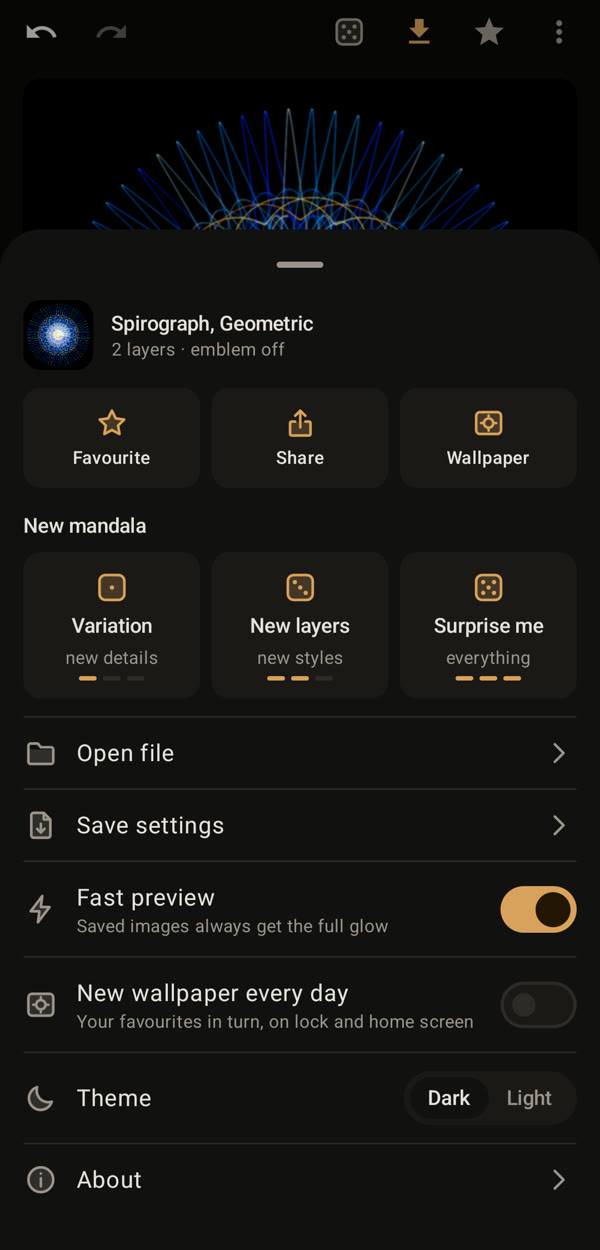
Open the menu (the three dots at the top right) and tap “Wallpaper”. Choose the home screen, the lock screen or both.
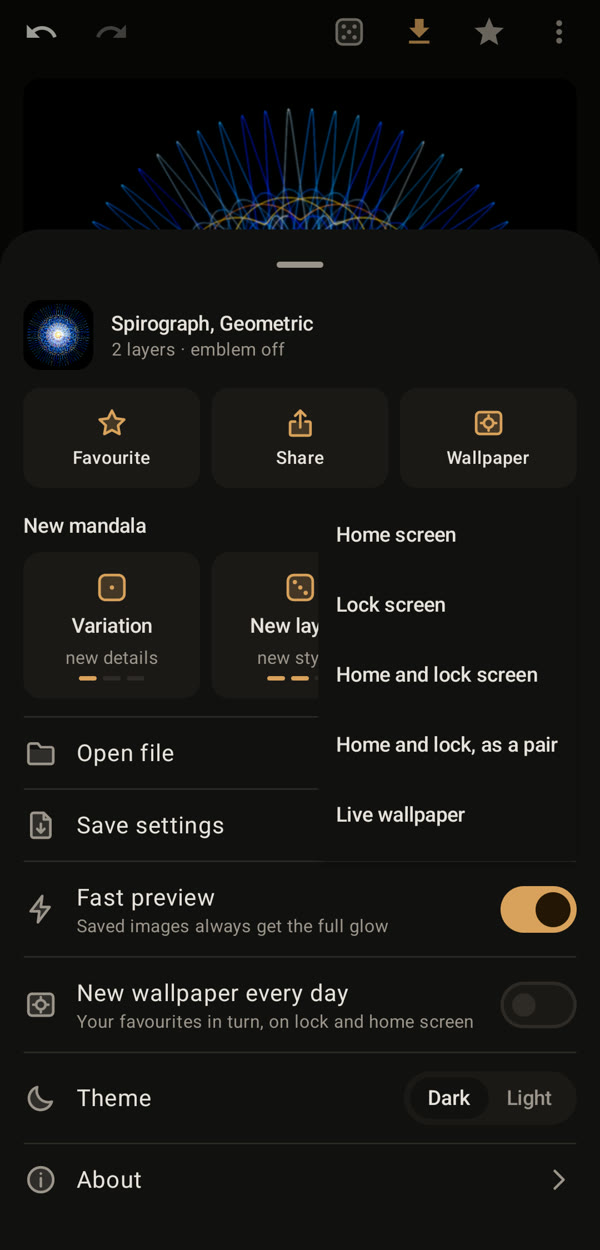
To decide how the mandala fills the screen first, use Save in the top bar instead: choose “This screen”, then “Whole” or “Fill”, and tap “Wallpaper” there.
2. Home and lock as a pair (Pro)
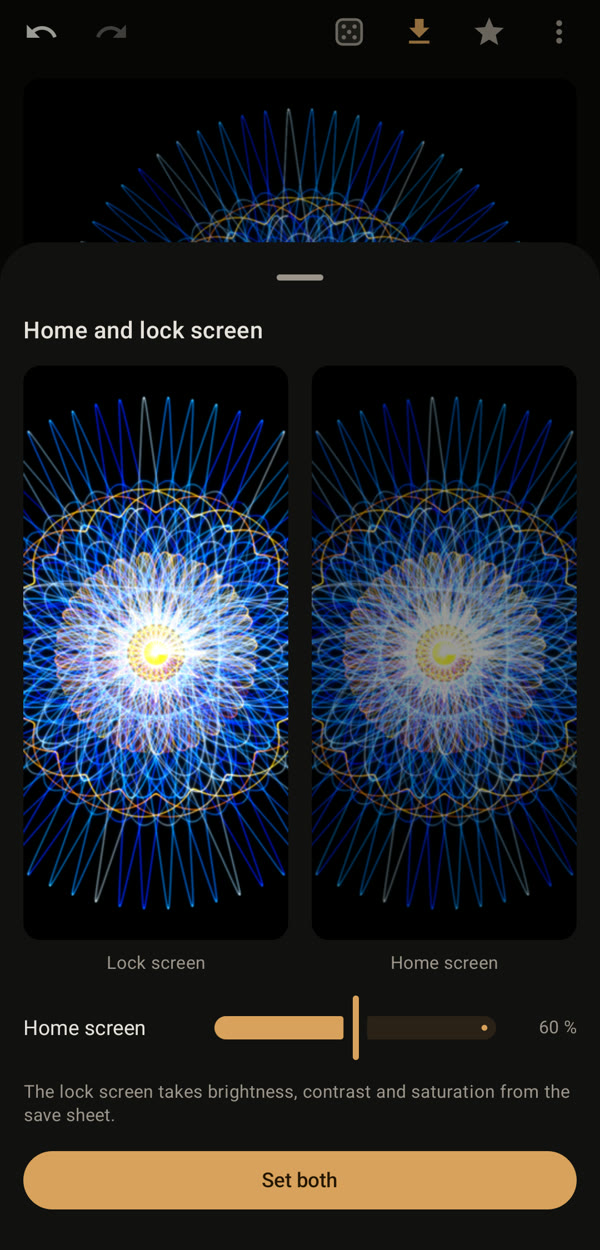
“Home and lock, as a pair” sets the same mandala on both screens, with the home screen a little darker so your icons stay readable. The slider sets how bright the home screen stays. Tap “Set both”.
3. A live wallpaper (Pro)
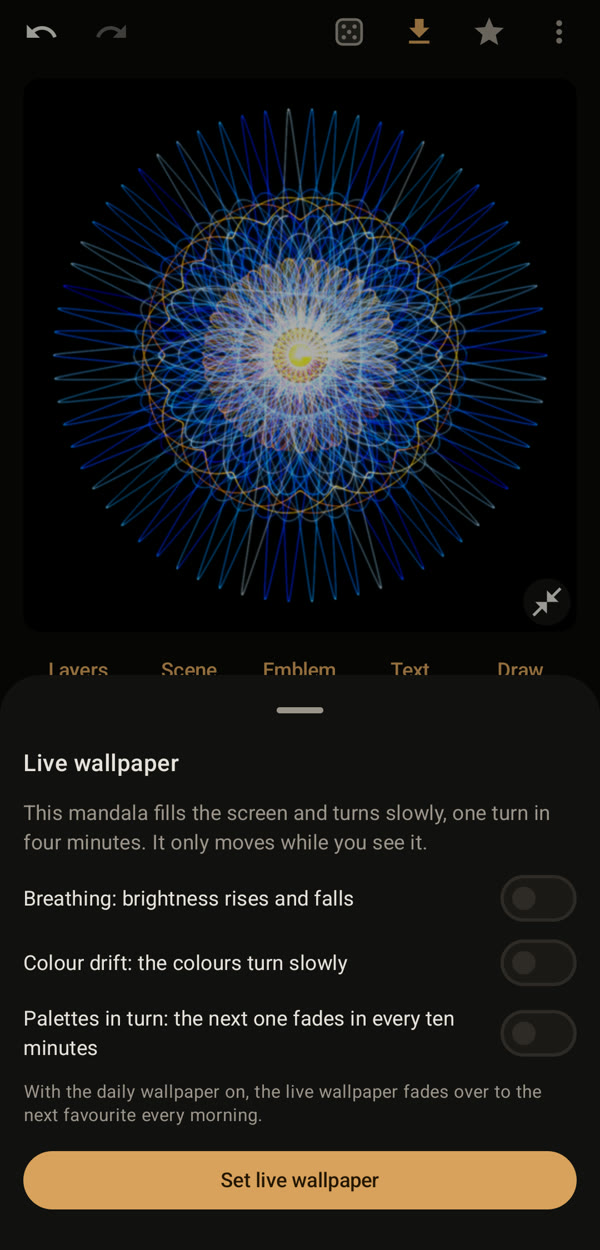
Choose “Live wallpaper”. The mandala fills the screen and turns slowly. You can also let it breathe, let its colours drift or change its palette every ten minutes. Tap “Set live wallpaper”.
4. Confirm in Android
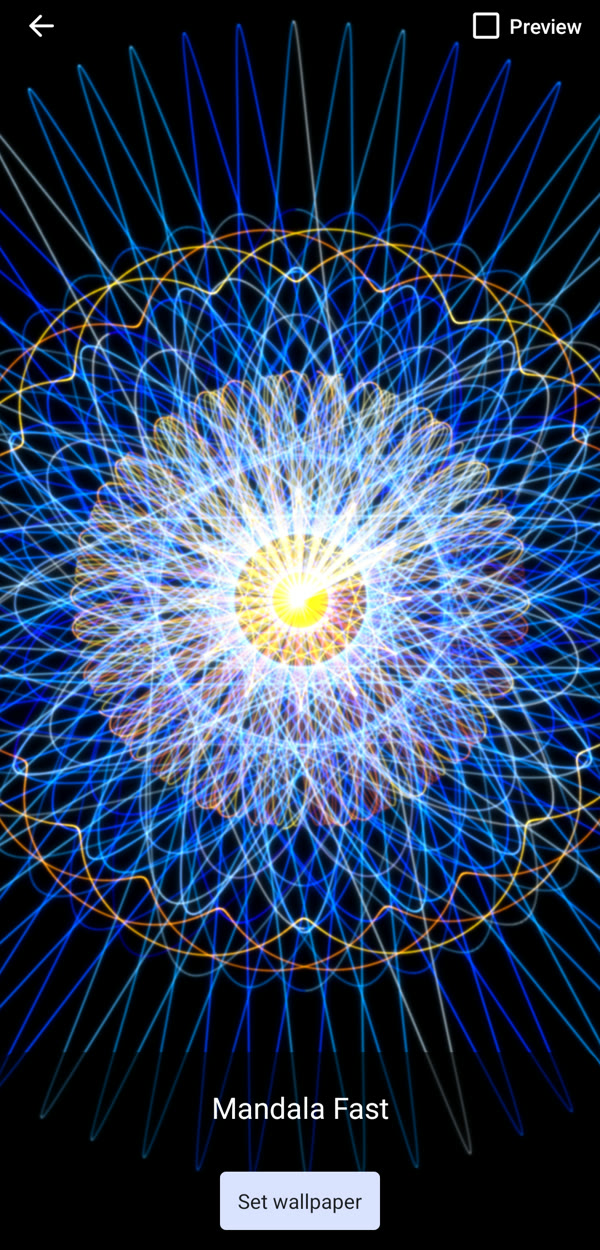
Dahlia renders the picture first, then Android shows its preview. Tap “Set wallpaper” there and choose the screens.
5. A new wallpaper every morning (Pro)
Switch on “New wallpaper every day” in the menu. Each morning the next of your favourites becomes the wallpaper. With the live wallpaper set, it fades over to the next favourite instead.